
Pre Requisite -
-
AWS Account -
-
Access
-
AWS CLI installed on the Machine
Step By Step Approach
In Windows Machine
Step 1 – Go to AWS Console and EC2 Dashboard
Copy the Bastion Host IP.
Bastion Host Name: “bh-prv-sub-connect-host”
Bastion Host IP: “18.204.243.175”
Step 2 – Go to AWS secrets manager
- Click on secrets:

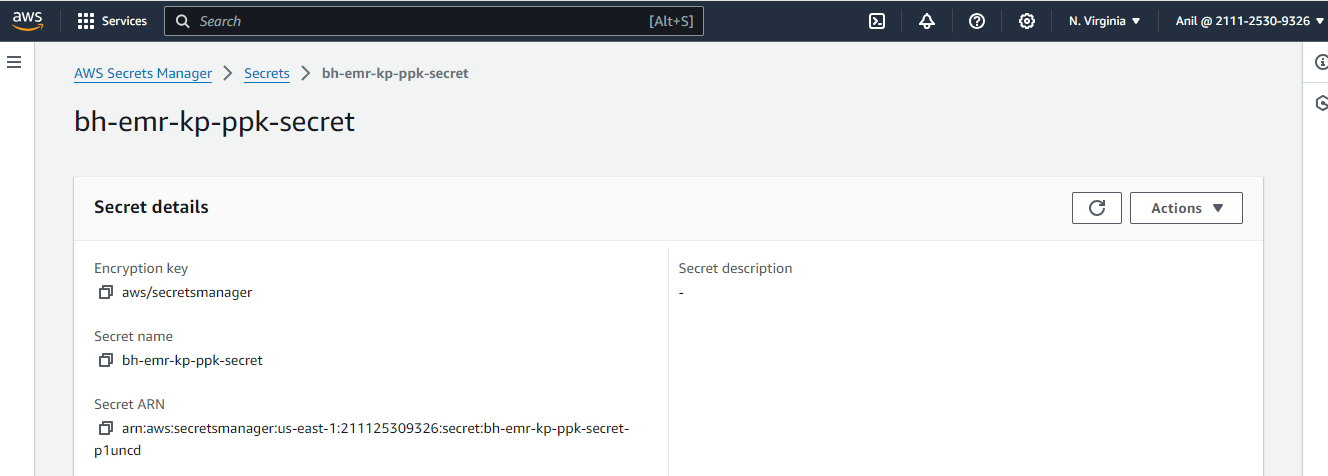
- Download the “bh-emr-kp-ppk-secret”, click on it
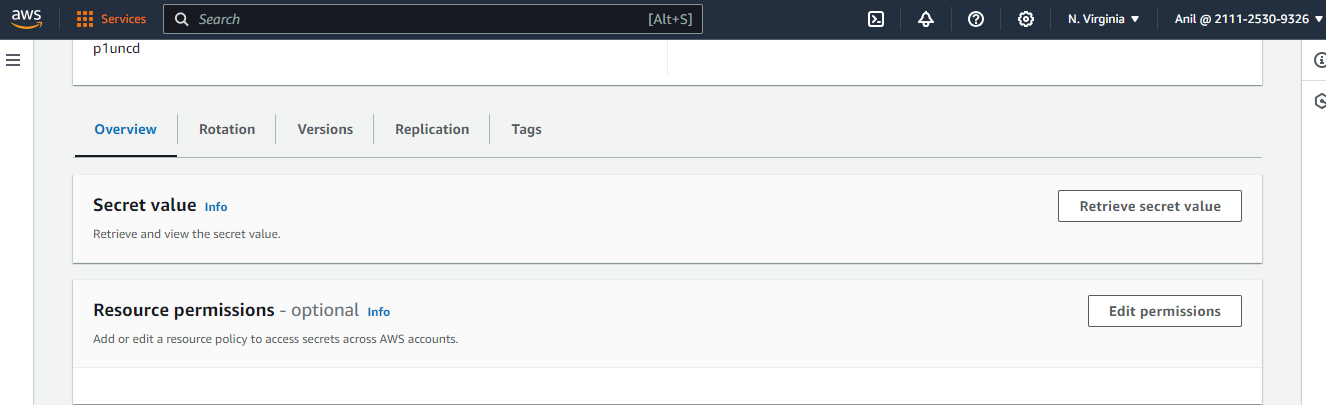
- Click on Retrieve secret value
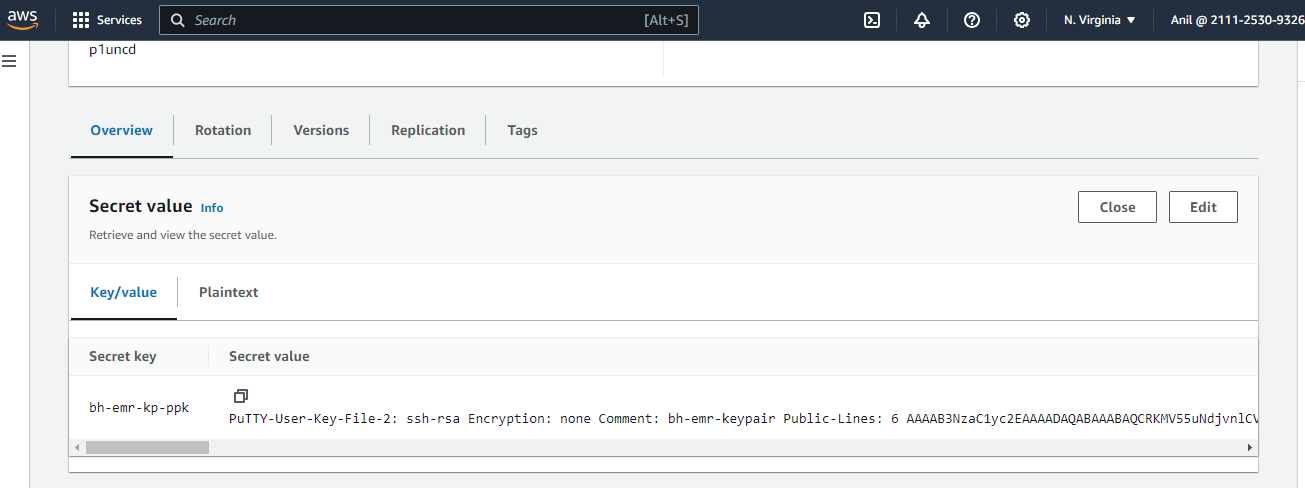
- Click on to copy the secret value and save it safely with a “.ppk” extension
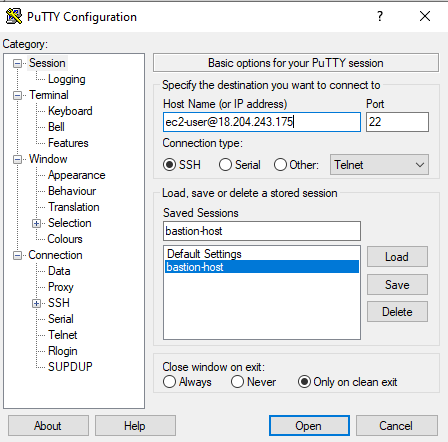
Step 2 – Login to Putty for Bastion Host
Note: If putty not available on the machine, download from here: Putty Download
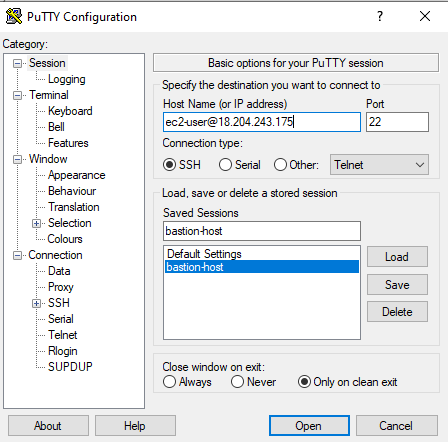
-
Enter the Host Name as shown in above screen shot and expand SSH –> Auth –> Credentials.
-
Click on Browse to upload the “.ppk” file of keypair and click on open.
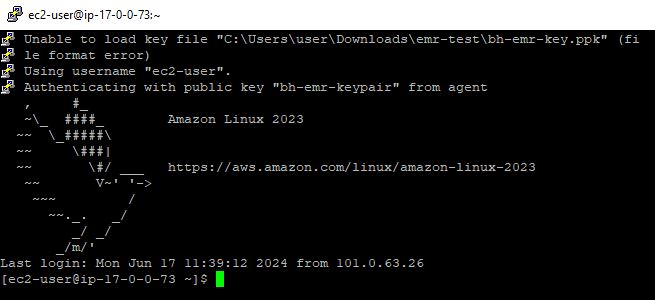
- Then it will login to Bastion Host Machine.
Step 3
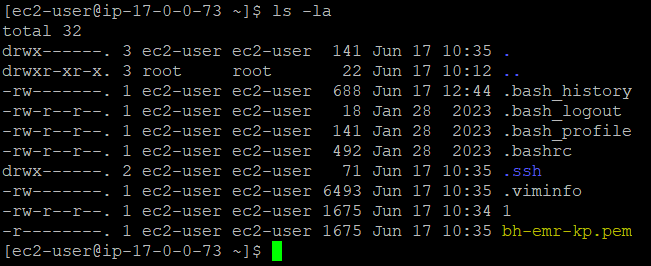
- Note: “.pem” keypair file “bh-emr-kp.pem” is already available in the Bastion Host.
-
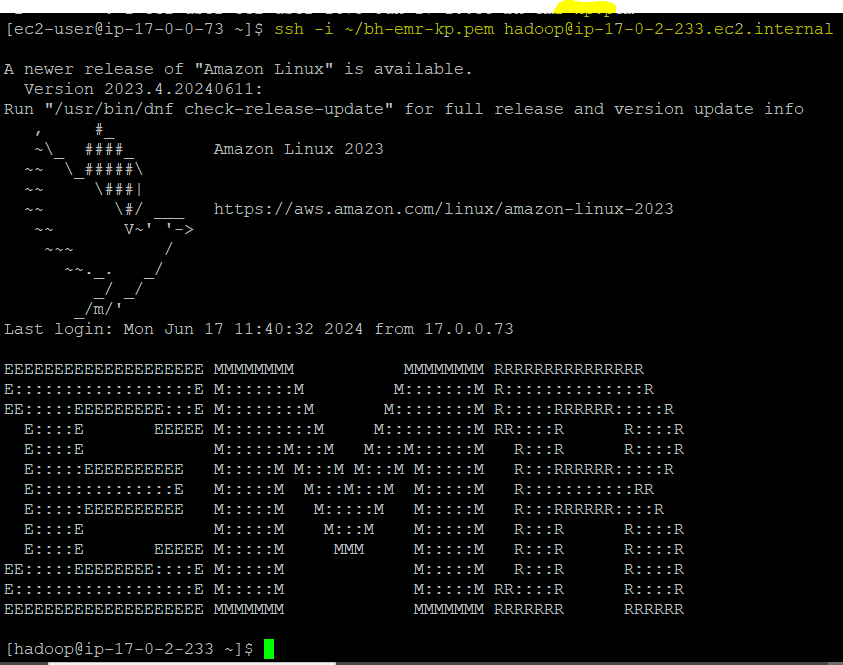
Use the below command to login to EMR cluster
-
$ ssh -i ~/bh-emr-kp.pem hadoop@ip-17-0-2-233.ec2.internal
In Mac Machine
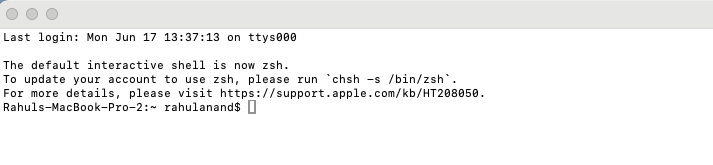
Step 1 Open Terminal in your machine
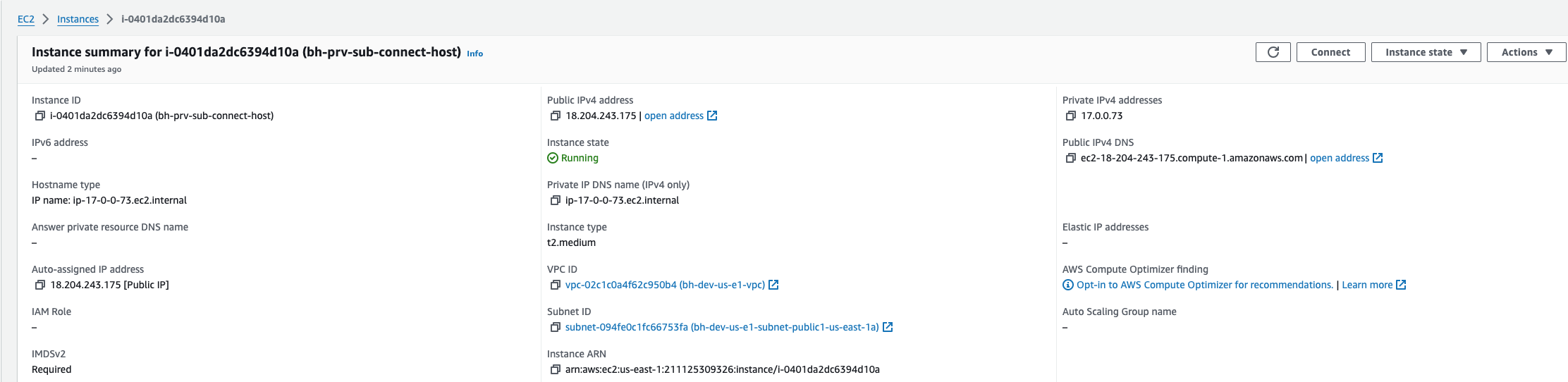
Step 2 – Go to AWS account and get the Public IP address of Bastion Host
- Public IPV4 Address - 18.204.243.175
Step 3 – Go to Secret manager and select the pem secret file . Click on Retrieve Secret button.
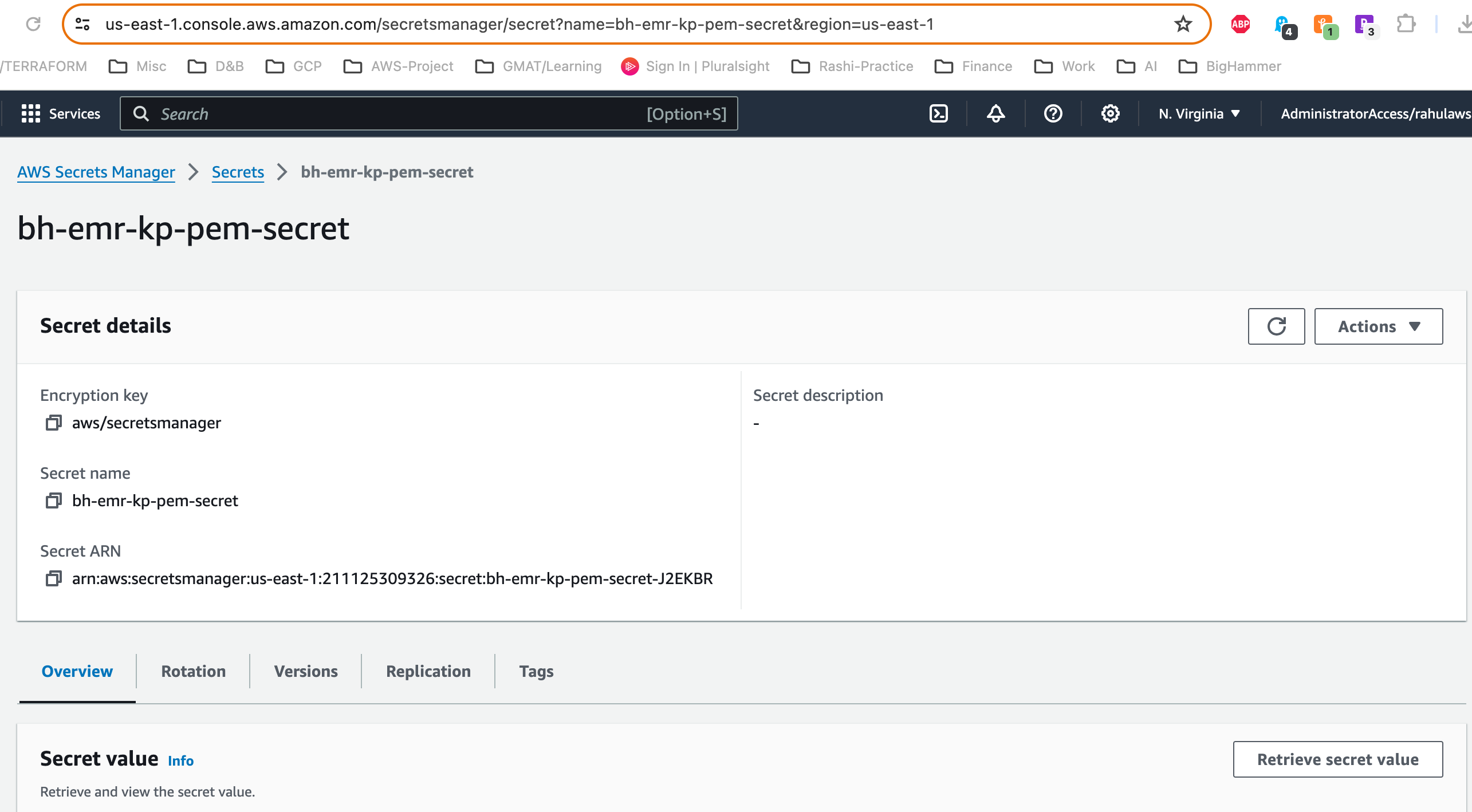
Step 4 –Select the Key Value Pair and Copy the secret value . Save this secret in your local machine with .pem extension

Step 5 – In the terminal change the directory to the location where you kept the secret key.
Step 6 – Run the following command to change the permission of the key
- chmod 600 bh-emr-kp-pem-secret.pem
