Edit Project Admin only
Use the Edit Project page to update project settings and repository details for an existing BigHammer project workspace. Administrators modify project metadata, repository links, and tags when project details change or when team structure needs adjustment.
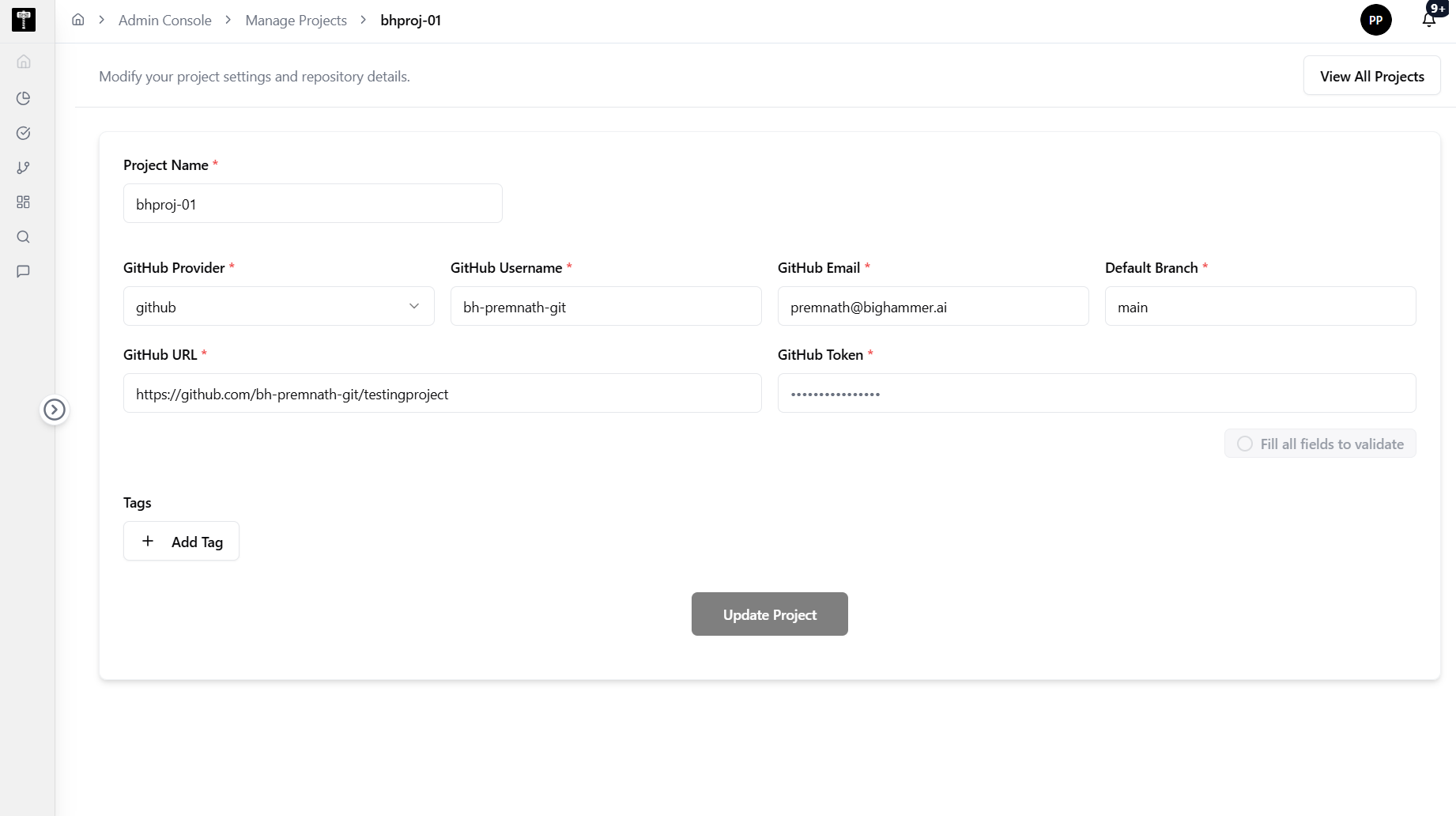
Update project settings and repository details
Modify the project form with revised information. Fields marked with * are compulsory.
Project Name*
Update the project name. Choose a name that follows your team's conventions and is easy to identify in workspace lists.
GitHub Provider*
Update the GitHub provider for the repository connection.
GitHub Username*
Update the GitHub username associated with the repository.
GitHub Email*
Update the GitHub email address associated with the repository account.
Default Branch*
Update the default branch for the repository (for example, main or master).
GitHub URL*
Update the full GitHub repository URL.
GitHub Token*
Update the GitHub personal access token. This token is used to authenticate and access the repository. Ensure the token has the required permissions for the repository.
Tags
Add, modify, or remove optional tags to categorise the project. Tags help filter and organise projects in the workspace list.
Validate and save
After completing all changes, click the Validate button to verify the repository connection and credentials. Once validation succeeds, save the updated project configuration.
Save and confirm
After saving changes, verify the updated information is reflected in the project list and that linked workflows continue to operate correctly.
What happens next
Updated project configuration takes effect immediately. Team workflows that depend on the project will use the new settings on their next execution.
Related pages
- List Projects — review all project workspaces
- Add Project — create a new project workspace
- Environments — assign runtime targets to projects