Edit Environment Admin only
Use the Edit Environment page to update an existing runtime environment's configuration, provider settings, or orchestration parameters. Administrators use this workflow when infrastructure requirements change or when environment details need correction.
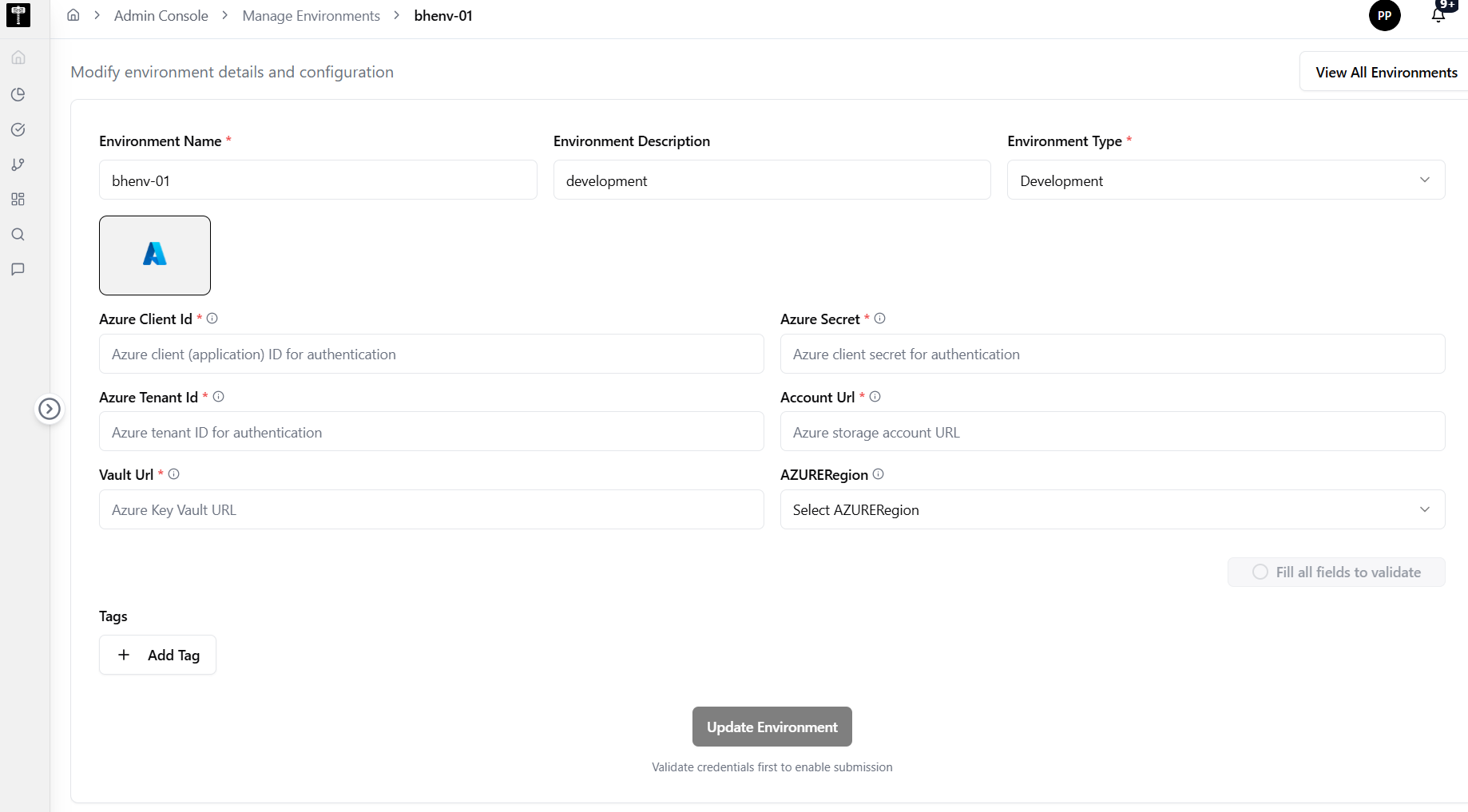
Locate the environment
Find the environment you need to update from the environment list. Confirm you are editing the correct runtime target before making changes.
Update provider configuration
Modify provider credentials, cluster settings, or orchestration parameters as required. Fields marked with * are required. Review the impact of changes before saving.
Provider-specific fields depend on the environment type:
- AWS — update
Aws Access Key Id*,Aws Secret Access Key*,AWSRegion - Azure — update
Azure Client Id*,Azure Secret*,Azure Tenant Id*,Account Url*,Vault Url*,AZURERegion - GCP — update
Gcp Project Id*,Gcp Credentials Json*,GCPRegion - Databricks — update
DatabricksCloudPlatform,Databricks Workspace Url*,Databricks Token*,DatabricksSecretsBackend,Secrets Scope Name
Validate and save
After completing all changes, click the Validate button to verify the updated credentials and connection. Once validation succeeds, save the updated environment configuration.
Save and confirm
After saving changes, verify the updated information is reflected in the environment list and that workloads continue to operate correctly.
What happens next
Updated environment configuration takes effect immediately. Workflows targeting this environment will use the new settings on their next execution.
Related pages
- List Environments — review all configured runtime targets
- Add Environment — create a new runtime environment
- Compute — confirm processing resources are available for the updated environment