Schedule
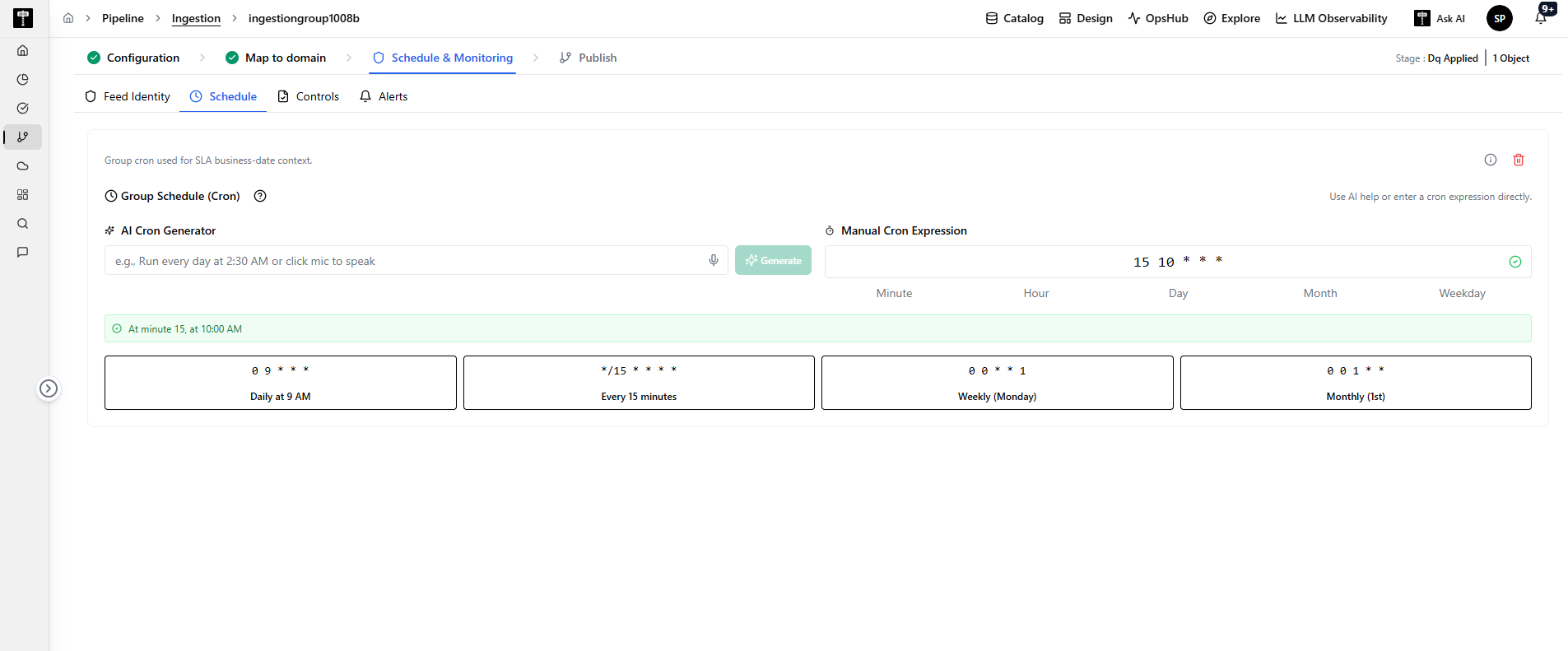
The Schedule section defines when the feed pipeline automatically executes and establishes the reference timeline for all Service Level Agreements (SLAs) and arrival monitoring rules.
Whether your data arrives continuously every 15 minutes, once a day at a fixed morning cutoff, or weekly on business days, the platform provides both an AI Natural Language Assistant and a Visual 5-Field Cron Editor to make schedule creation fast, flexible, and error-free.
Why Schedule Configuration is Needed
In modern enterprise DataOps, accurate scheduling delivers three critical capabilities:
- Automated Pipeline Execution: Triggers ingestion workflows at the exact operational intervals required by business consumers.
- Baseline for SLA Monitoring: Timeliness controls (such as On-Time Arrival and On-Time Milestone) use the configured schedule to determine whether incoming data has arrived on time or is delayed.
- Business Date Alignment: Establishes the logical business date context (e.g., matching a Monday morning run with Sunday's closed business transactions).
Configuration Methods
The Schedule interface offers two complementary ways to define your run cadence:
1. AI Natural Language Schedule Assistant
The AI Schedule Assistant allows users to describe their intended schedule in plain English without needing to know Unix Cron syntax:
- Text Input: Type plain-language requirements such as:
"Run every day at 2:30 AM""Every 15 minutes on weekdays""First Monday of every month at midnight"
- Voice / Microphone Input (🎙️): Click the microphone icon to speak your scheduling requirement directly into your browser.
- Generate Action (✨): Click Generate to automatically synthesize and populate the validated 5-field Cron expression and display its human-readable confirmation.
2. Manual Cron Expression
For users familiar with Cron syntax, the interface allows direct entry and fine-tuning across all 5 standard Unix Cron fields:
  ┌───────────── Minute (0 - 59)
  │ ┌───────────── Hour (0 - 23, 24-hour format)
  │ │ ┌───────────── Day of Month (1 - 31)
  │ │ │ ┌───────────── Month of Year (1 - 12)
  │ │ │ │ ┌───────────── Day of Week (0 - 6, Sunday = 0)
  │ │ │ │ │
  * * * * *
Visual Field Interpretation & Confirmation
As you enter or modify values, the UI provides real-time field breakdowns and a clear English confirmation below the inputs (e.g., (✓) At minute 15, at 10:00 AM), ensuring you can easily verify that the schedule matches your business intentions.
Common Schedule Presets
The interface provides one-click shortcut cards for standard enterprise operational patterns:
| Preset Card | Cron Expression | Plain English Interpretation | Typical Business Use Case |
|---|---|---|---|
| Every 15 minutes | */15 * * * * | Runs every 15 minutes around the clock. | High-frequency CDC, streaming micro-batches, or real-time syncs. |
| Daily at 9 AM | 0 9 * * * | Runs once every day at 09:00 AM in the feed's timezone. | Standard daily batch files (e.g., nightly transactions, sales reports). |
| Weekly (Monday) | 0 0 * * 1 | Runs every Monday at midnight (00:00). | Weekly rollups, compliance audits, or weekly partner extracts. |
| Monthly (1st) | 0 0 1 * * | Runs on the 1st calendar day of every month at midnight. | Monthly financial closing, monthly billing cycles, and ledger rollups. |
You can click any preset button as a starting point and further customize the hour or minute as needed.
How Schedule Connects to SLA & Monitoring Controls
The configured schedule serves as the operational clock for downstream controls:
- On-Time Arrival: Uses the schedule interval to evaluate whether files have landed in cloud storage before the deadline.
- Periodicity Auto-Derivation: When controls are configured with
Periodicity: Auto (from cron), the system automatically determines whether the feed is sub-hourly, daily, weekly, or monthly, adapting grace periods and alert thresholds accordingly. - Business Date Context: Combines with the feed's timezone and date offset to assign the correct business date (e.g., $T-1$ for yesterday's data arriving this morning).
Validation & Error Handling
- Valid Expression: When a valid cron pattern is generated or entered, a green checkmark
(✓)appears along with the human-readable description. - Invalid Syntax: If an out-of-range value (e.g., entering
75in the Minute field) or an unrecognized character is entered, the input is outlined in red with a clear validation error indicating the accepted range.