Controls
The Controls section defines the operational checks, data quality rules, and Service Level Agreement (SLA) policies that run automatically for an ingestion feed.
Controls act as intelligent automated guardrails, ensuring that incoming files arrive on schedule, meet structural standards, maintain catalog schemas, and transform accurately across pipeline stages.
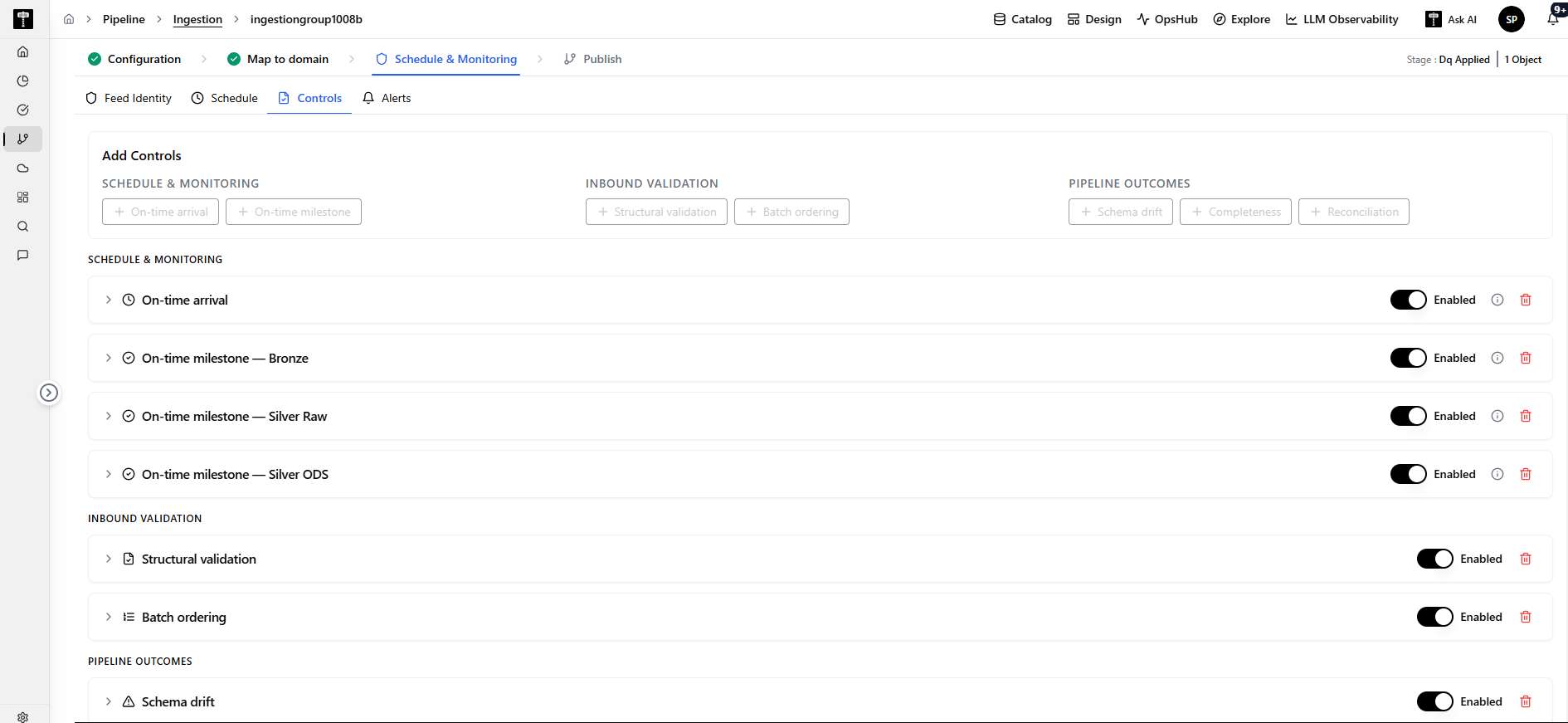
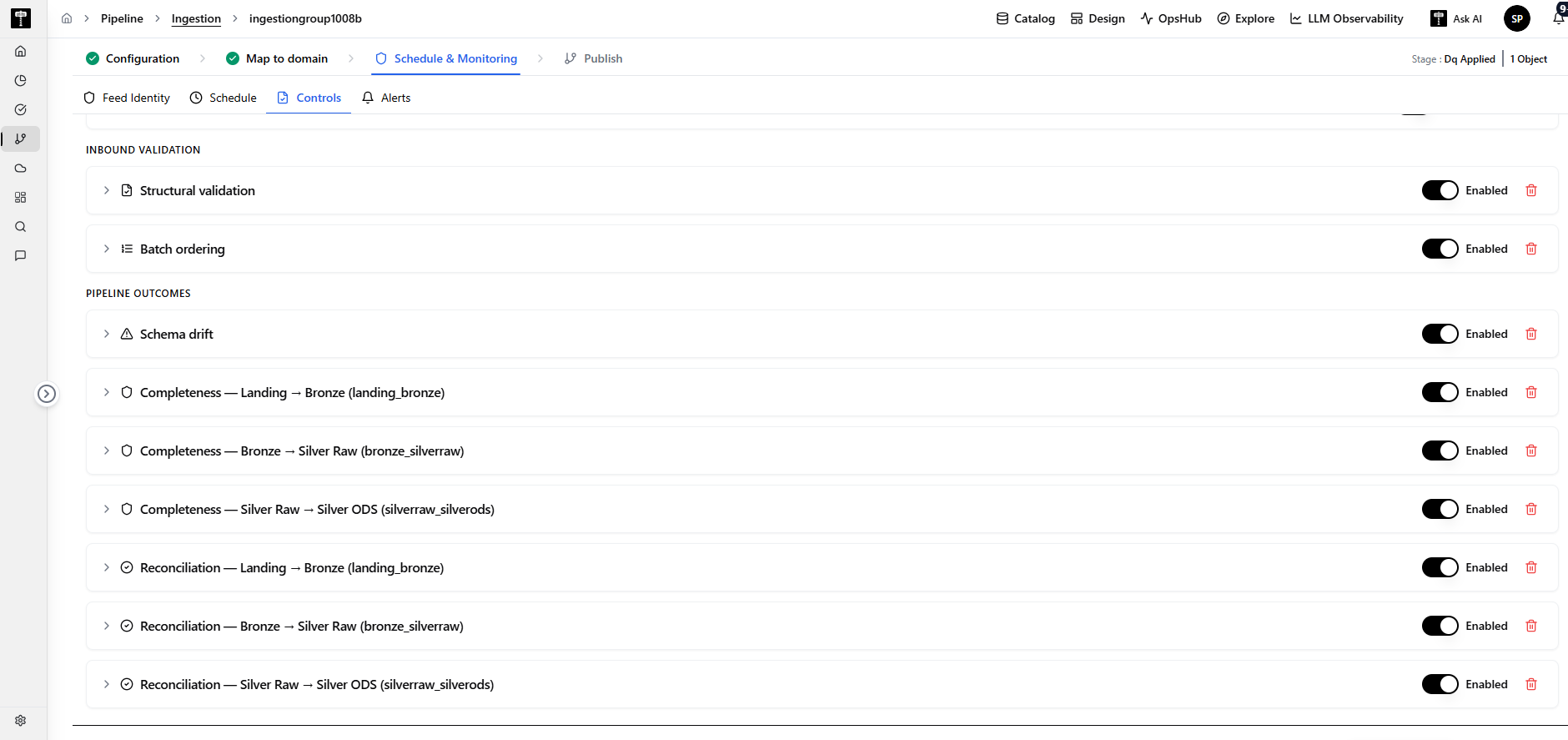
1. Schedule & Monitoring Controls
On-Time Arrival
- What it monitors: Checks whether the expected source data files land in cloud storage (S3, ADLS, Blob) within the configured schedule and SLA window.
- Why it is needed: Downstream business reporting and data operations depend on timely file arrival.
- What it checks: Compares the file arrival timestamp against the feed's expected cutoff time, grace period window, and missing threshold.
- Identified Conditions:
- On Time 🟢: File arrives on or before the expected cutoff time.
- Delayed (In Grace Period) 🟡: File arrives after the cutoff but within the allowed grace period.
- SLA Breached 🔴: File arrives after the grace period expires or remains unreceived.
- Missing Data 🔴: No file arrives within the maximum waiting threshold.
- What you can configure: Evaluation mode (
Periodic cutoff,Per occurrence,Freshness), expected arrival time (HH:MM), grace period (minutes), and missing after threshold (minutes). - Business Example: The Claims Daily Feed expects arrival by 06:00 AM with a 30-minute grace period. If a file arrives at 06:15 AM, OpsHub flags it as
Delayed(warning); if no file arrives by 06:35 AM, it triggers aBreachedalert.
On-Time Milestone
- What it monitors: Tracks whether downstream Medallion pipeline stages (e.g., Bronze, Silver Raw, Silver ODS) finish processing within their expected completion time.
- Why it is needed: Ensures that heavy data volumes or slow transformations do not delay refined data delivery for business reporting.
- What it checks: Monitors the actual pipeline completion timestamp for a designated processing stage against its configured deadline.
- What you can configure: Target stage name (
Bronze,Silver Raw,Silver ODS), deadline time, and grace period buffer. - Resulting Status: Healthy 🟢 if completed by deadline; At Risk 🔴 if the stage runs late.
2. Inbound Validation Controls
Structural Validation
-
What it monitors: Verifies that incoming files meet physical file integrity requirements before ingestion begins.
-
Why it is needed: Prevents corrupted, 0-byte, or malformed files from crashing data pipelines or polluting the data lake with invalid records.
-
What it checks:
FILE_FORMAT: Conformance to expected formats (CSV, Parquet, JSON, XML) and delimiter/header syntax.NON_EMPTY_FILE: Verifies that file size is greater than 0 bytes and contains readable records.FILE_SIZE: Validates that file byte size falls within acceptable minimum and maximum boundaries.FILE_COUNT: Ensures the number of landing files matches the expected count for the batch.
-
What you can configure: Checkbox selection for each check and min/max size thresholds.
-
Resulting Status: Healthy 🟢
SUCCESSif all checks pass; At Risk 🔴FAILEDif any check fails (pipeline halts immediately).
Batch Ordering
- What it monitors: Controls the execution order of pending files representing different business dates.
- Why it is needed: When multiple backlogged files land in storage at once, processing them out of order can cause data overwrites or incorrect historical state calculations.
- How it works: When enabled, pending files are always processed in strict chronological business-date order.
- Example: If files for
2025_05_01(May 1) and2025_05_02(May 2) are pending in storage and the current business date is May 2:- First pipeline run → Processes the
2025_05_01file. - Next pipeline run → Processes the
2025_05_02file.
- First pipeline run → Processes the
- Example: If files for
- Multi-Part Groups: Ensures that multi-file sets (e.g.,
HEADERandDATAfiles) for the same timestamp are all present before processing begins, pausing (wait) if any group member is missing.
3. Pipeline Outcome Controls
Schema Drift
- What it monitors: Compares the structure of incoming data against the registered table definition in the Data Catalog.
- Why it is needed: Protects downstream dashboards and applications from breaking when source systems add, remove, or modify columns.
- What it checks: Detects added columns, missing columns, data type changes, or column order differences.
- The Three Resulting Outcomes:
- Success 🟢: No schema changes detected; incoming structure matches the catalog definition perfectly.
- Healthy (Acceptable Drift) 🟡: A permitted, non-breaking schema change is detected (such as an approved optional column), and data processing continues safely.
- At Risk (Failed) 🔴: An unsupported or breaking schema change occurs (e.g., a required column is missing, or data types conflict), causing the batch to halt according to policy.
Completeness
- What it monitors: Checks whether the volume of records written to a processing layer meets or exceeds the expected minimum volume.
- Why it is needed: Catches partial extracts or silent upstream data drops that fail to generate system errors.
- What it checks: Compares the recorded row count (
observed_count) against your configuredexpected_min_count. - Resulting Status: Healthy 🟢 if recorded rows meet or exceed the threshold; At Risk 🔴
FAILEDif row count falls below expectations (e.g., "Observed 120 rows; expected at least 5,000").
Reconciliation
-
What it monitors: Compares input record counts against output record counts between processing stages to track and limit data loss.
-
Why it is needed: Transformation steps (filtering, deduplication, cleansing) often drop or quarantine records. Reconciliation ensures data drops remain within approved business tolerance.
-
What you can configure: Stage name (e.g.,
Bronze → Silver Raw), acceptable variance tolerance percentage (e.g.,0.5%), and maximum allowed error/quarantine count (e.g.,0). -
Resulting Status: Healthy 🟢 if variance is 0% and errors are 0; Healthy (Warning) 🟡 if variance is within tolerance; At Risk 🔴
FAILEDif variance or errors exceed configured limits.
Managing Controls in the UI
Each configured control appears as its own expandable card in the Controls tab:
- Add Controls: Click the
+ Add Controlsbutton to select from the control catalog. - Enable / Disable Toggle: Easily turn any control ON or OFF without deleting its configured parameters.
- Expand / Collapse: Click on any control card to view and adjust its thresholds, stage scopes, or checks.
- Remove Control: Click the delete icon to remove a control that is no longer required.
- Review Before Publishing: Review your full active control matrix before clicking Save & Publish.