Alerts
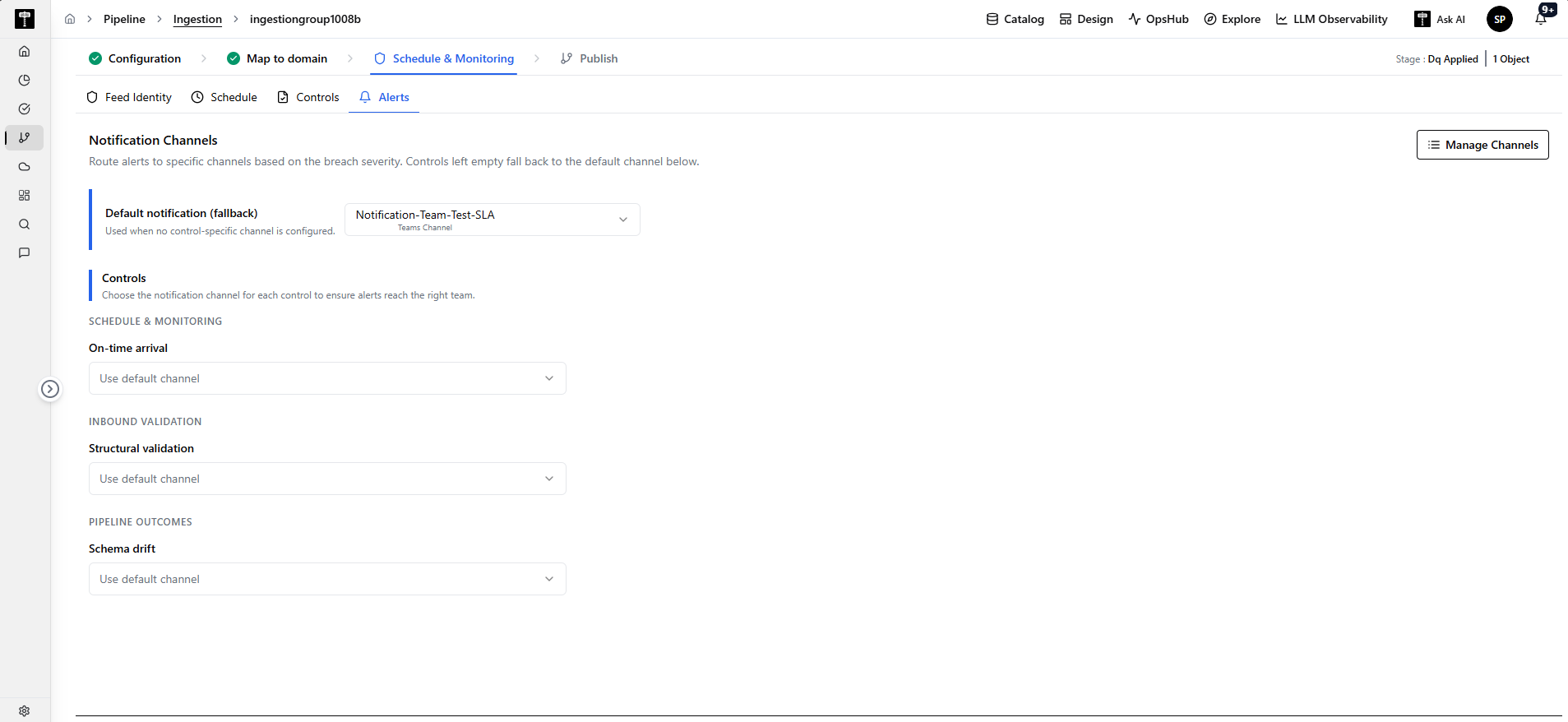
The Alerts section defines where and how operational notifications are routed when an active control detects an SLA delay, validation breach, or quality issue.
By configuring alert destinations, you ensure that incidents are immediately delivered to the right operational teams via their preferred collaboration tools (such as Microsoft Teams, Slack, or Email) without creating notification clutter for uninvolved teams.
Why Alert Routing is Needed
In enterprise data architectures, different operational teams are responsible for different types of pipeline issues:
- SLA & Operations Teams manage file delivery timelines and arrival cutoffs.
- Data Engineering Teams resolve structural file corruption, network drops, and cluster errors.
- Data Governance & Stewards review schema drift and unexpected structural changes.
Sending every alert to a single channel leads to alert fatigue and slower response times. The platform's alert routing solves this by providing granular control-level notification routing paired with a reliable default fallback channel.
Key Components of the Alerts Configuration
1. Manage Channels
Located in the upper-right corner of the Alerts panel, the Manage Channels link opens the Channel Configuration console. Here, administrators can create, update, and test external communication channels:
- Microsoft Teams: Webhook integration sending structured Adaptive Cards.
- Slack: Webhook integration sending color-coded status cards.
- Email: Corporate SMTP or Microsoft 365 OAuth2 Graph delivery.
2. Default Notification (Fallback) Channel
The Default notification (fallback) dropdown defines the primary alert destination for the feed.
- Example:
Notification-Team-Test-SLA - Purpose: Acts as the safety net. If a specific control does not have its own dedicated channel assigned, all alerts generated by that control automatically route to this default channel.
- Guarantee: Ensures that no SLA breach or validation failure goes unnoticed, even if a user forgot to configure a control-specific destination.
3. Control-Specific Notification Routing
Each enabled control in your feed is displayed under its respective functional category, allowing you to select a dedicated notification channel for that specific check:
SCHEDULE & MONITORING
- On-time arrival: Select a channel for delivery delays and missing data alerts.
- On-time milestone — Bronze: Select a channel for Bronze transformation delays.
- On-time milestone — Silver Raw: Select a channel for Silver transformation delays.
INBOUND VALIDATION
- Structural validation: Select a channel for corrupted, empty, or wrong-format files.
- Batch ordering: Select a channel for multi-file group sequencing issues.
PIPELINE OUTCOMES
- Schema drift: Select a channel for unannounced column additions or type modifications.
- Completeness — Bronze: Select a channel for record count shortfalls.
- Reconciliation — Bronze: Select a channel for source-to-target variance breaches.
Understanding "Use Default Channel" vs. Dedicated Channels
Every control dropdown gives you two routing options:
| Configuration Option | Behavior | When to Use |
|---|---|---|
| Use default channel | The control forwards all alerts to the feed's Default notification (fallback) channel. | When standard operations or on-call teams handle the issue, or when a separate team is not required. |
Specific Channel (e.g., Slack-Data-Engineering) | Alerts for that specific control bypass the default channel and are routed directly to the selected team. | When specialized specialists (e.g., Data Engineers or Schema Stewards) need to act immediately without intermediate triage. |
Realistic Business Routing Example
Consider an enterprise Enrollments ingestion feed:
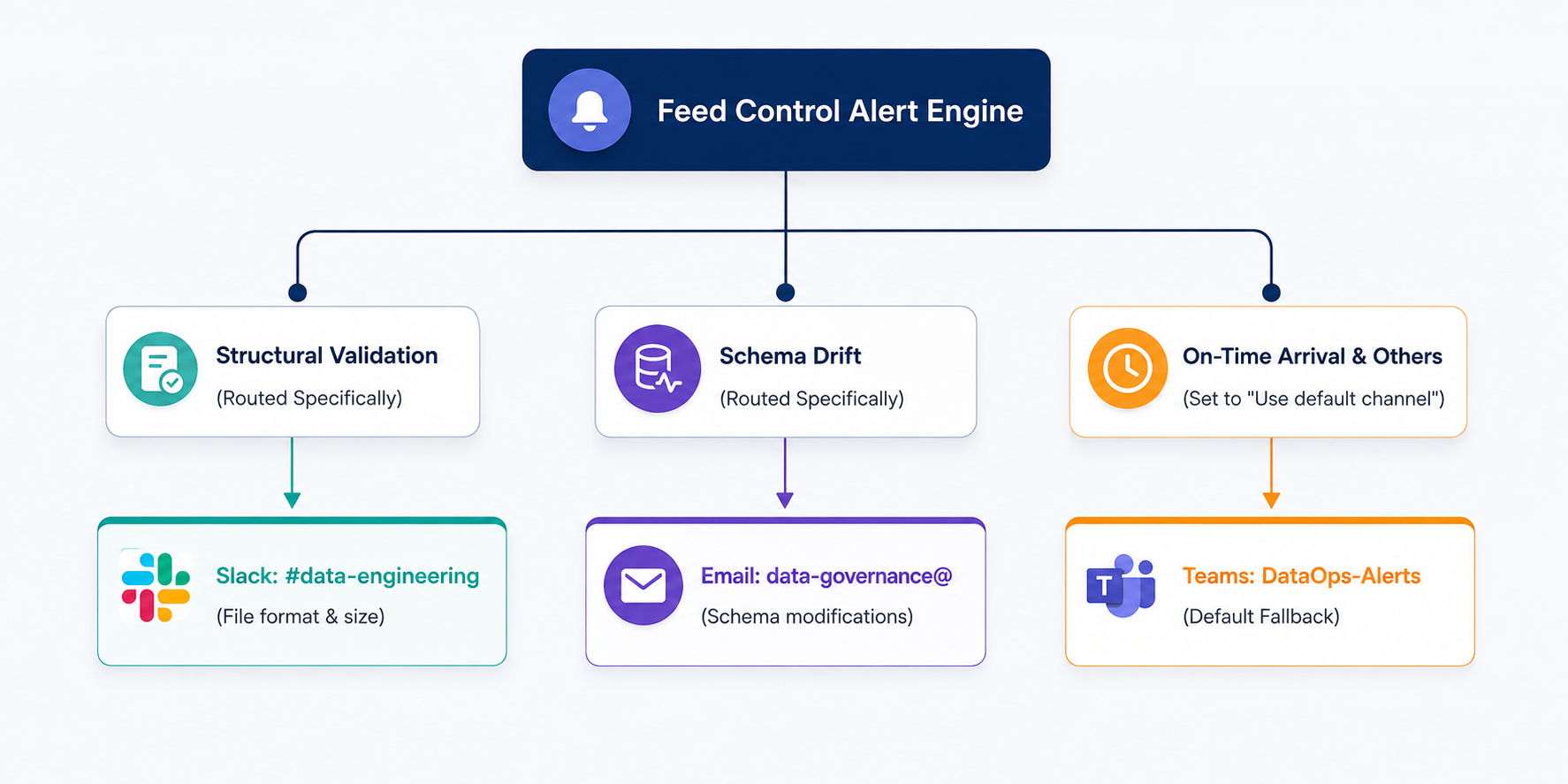
- Structural Validation fails: A vendor delivers a 0-byte corrupt file. The alert routes directly to
Slack: #data-engineering. - Schema Drift detected: A vendor adds a new column
member_plan_tier. The notification routes directly toEmail: data-governance@company.com. - On-Time Arrival delayed: A morning file is 20 minutes late. Because this control is set to Use default channel, the alert routes to
Teams: DataOps-Alerts.
This granular separation ensures every team receives only the alerts they need to act upon.